Taking payments inside the app
Money goes to your own merchant account, not to us. YooKassa or T-Bank.
You are the merchant. The buyer’s money goes straight to your merchant account, which punches the receipt, and refunds happen in your console. We store the keys and build the request — we never hold the money and cannot refund it.
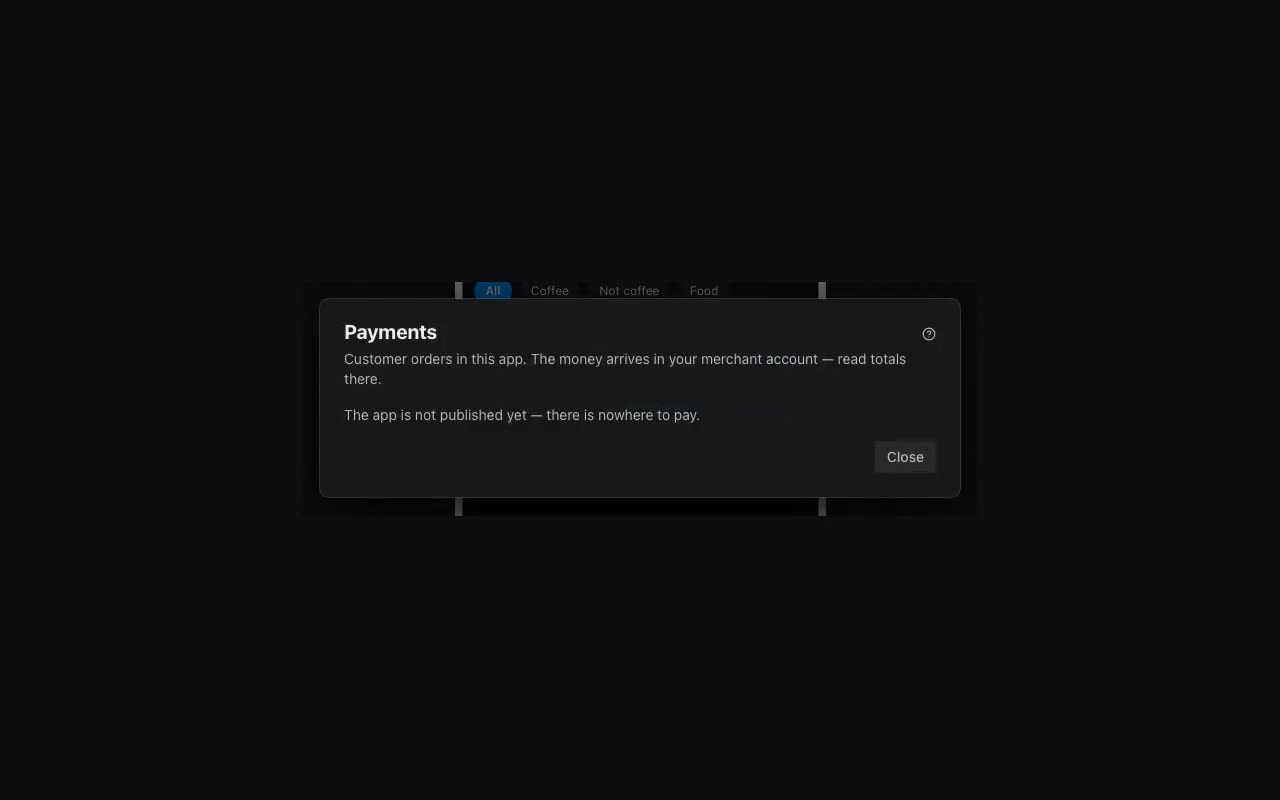
Where: More → Payments, or the tab in the publish dialog.
- YooKassa — a company, a sole trader or a self-employed person can connect it; a shop is opened at yookassa.ru. The keys are in your console: Settings → Shop. You need the shop id and the secret key.
- T-Bank — a sole trader or a company with a T-Bank business account can connect it; acquiring is set up at tbank.ru/kassa. The keys are under Shops → Terminals. You need the terminal key and password. To verify them a 1 ₽ payment is created and immediately cancelled — there is no other way to check.
Then give a button in the app the Take payment action and set the amount. The amount can come from a table or from the cart:
{{item.price}}Actions placed on the button after Take payment run only if the money arrived: recording the order, emptying the cart, going to the thank-you screen. On a refusal the chain stops and the cart stays full, so the person has somewhere to go back to and try again.
If you have an online cash register (54-FZ). A till wired to an online cash register must punch a receipt for every payment — and refuses a payment that carries none. The receipt cannot be set up once in the console: it holds the items of one purchase and the contact of one buyer, and only the app knows those. So when connecting the till, tick The till issues a fiscal receipt (54-FZ) and choose your tax system and VAT rate.
The receipt goes to the buyer by email or phone — without one the till refuses the payment. The phone fills itself in when the person has already shared it through Ask for phone. To use an email, add a field to your form and name it in the Take payment action, under Buyer’s email or phone:
{{form.email}}The VAT rate and tax system can be changed later without re-entering the keys: the Change button next to the Receipt line. 22% is the base rate since 1 January 2026; 20% is not on the list, and a receipt carrying it would be refused.
Buyer orders are listed under Payments: paid, failed, pending. For the money itself look in your merchant console — that is where it is, not here.
If somebody else sells through your app. An event organiser, a venue, a craftsman — money for their goods can go straight into their own till, bypassing you. In the payments dialog, below your own till, press Not the only seller? Sellers’ tills (the section stays folded into that line until you add a seller): add a row with the seller’s name and send them the link. They enter the keys themselves, on a separate page and without signing in — you neither see nor type them. On your side you see their till’s name at the provider and a green “connected” mark.
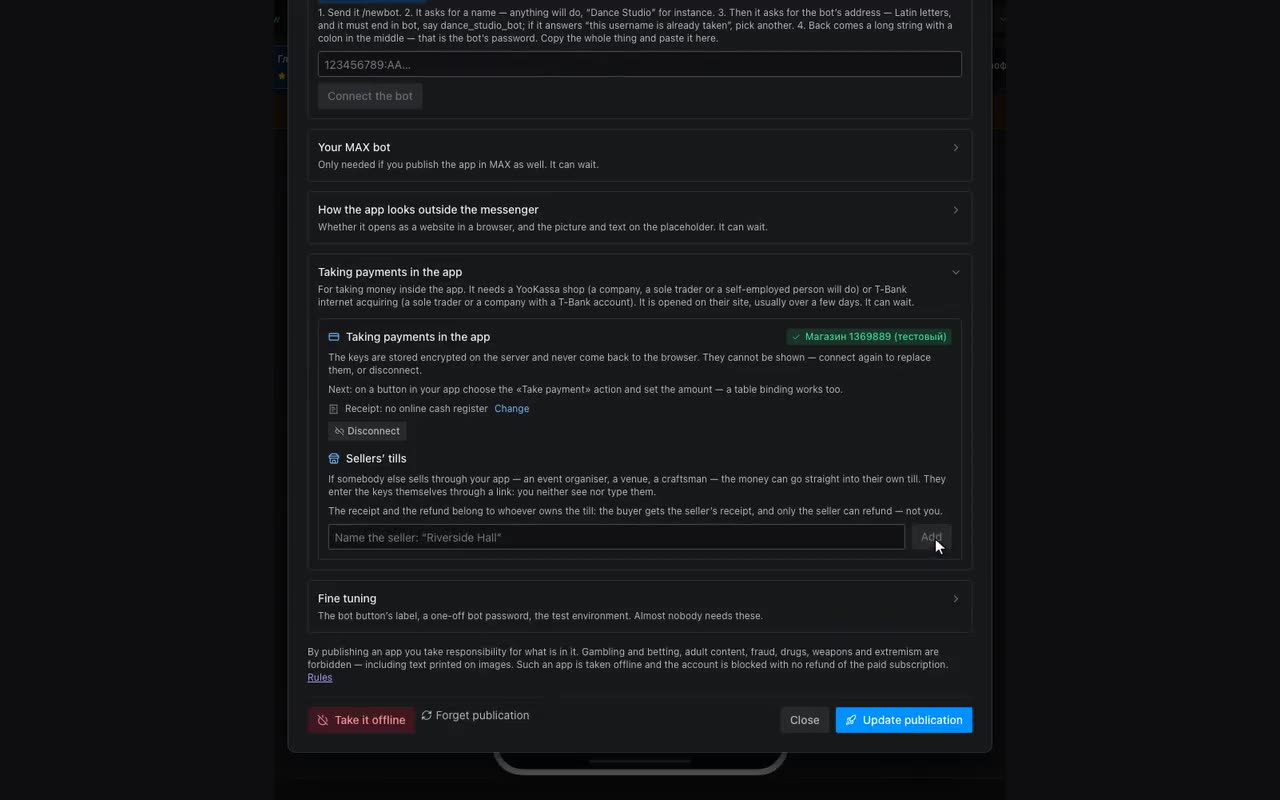
What is left is saying which button calls whose till. The Take payment action grows a Seller’s till field. If every event has its own seller, add a column with the till id (it is printed right under the seller’s name, with a Copy ID button) and bind it:
{{item.till}}