AI assistant: build and change apps from Claude, Cursor and ChatGPT
Connect your assistant to the account and ask in plain words: build an app, fix a screen, show requests, publish.
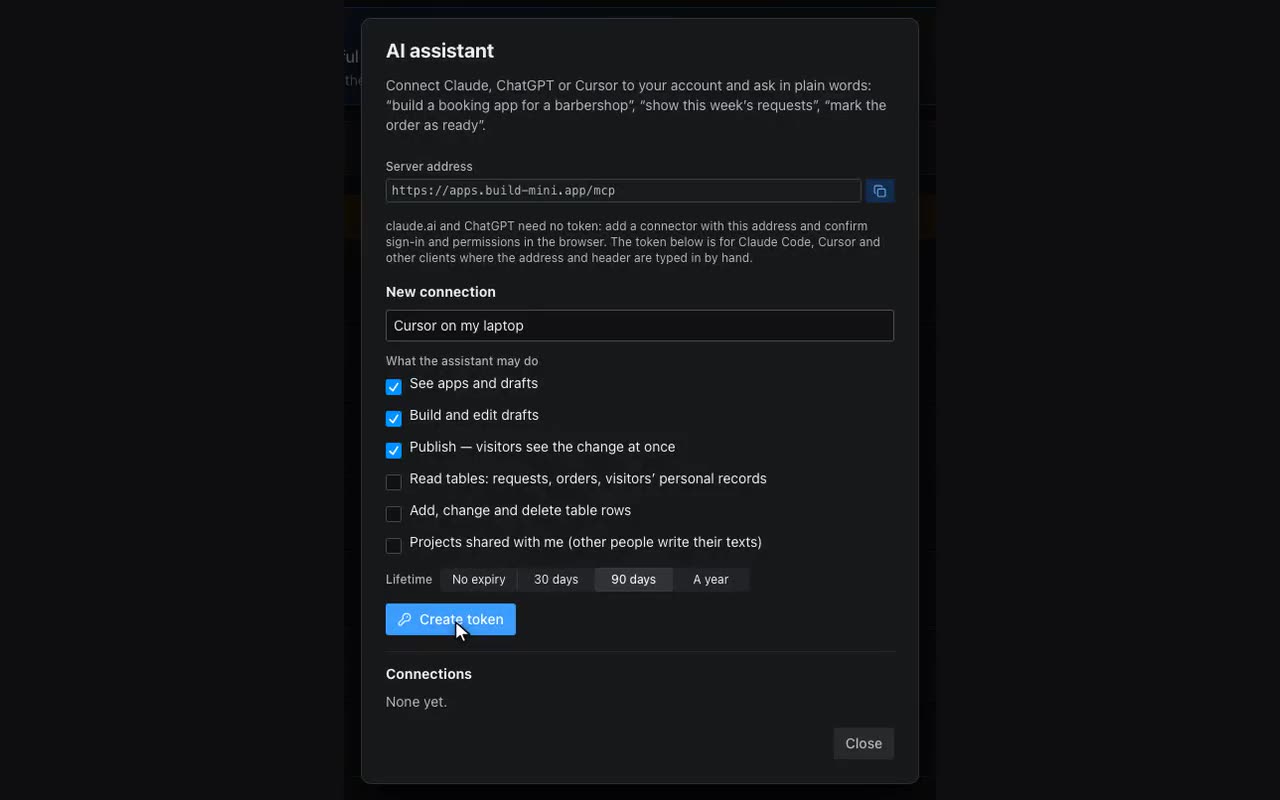
Where: The account menu (your phone number, top right) → AI assistant.
The assistant works with your account through the server https://apps.build-mini.app/mcp. It builds the same way our in-editor helper does: it comes up with screens and blocks, and the builder assembles the app from them. New apps and changes go into a draft: visitors see nothing until you publish.
- claude.ai and ChatGPT. Add a connector with the server address. Our page opens: sign in, tick what to allow and press “Allow”. No token to paste.
- Claude Code and Cursor. In the “AI assistant” window name the connection, tick what to allow and press “Create token”. Copy the ready command for Claude Code or the
mcp.jsonsnippet for Cursor. The token is shown once. - Ask in plain words: “build a booking app for a barbershop with services and prices”, “make the booking button on the home screen stand out”, “a haircut now costs 1700”, “show this week’s requests”. The assistant gives you a preview link — it opens the draft in a browser without publishing and lasts an hour.
claude mcp add --transport http build-mini-app https://apps.build-mini.app/mcp \
--header "Authorization: Bearer bmt_…"| Permission | What the assistant can do |
|---|---|
| See apps | The list of projects, what an app is made of, a preview link. |
| Build and edit | A new app, changes to screens, new screens, tables, catalog rows (products, services, prices), styles — in the draft. |
| Publish | Publish the draft. Visitors see the change at once. |
| Read tables | Requests, orders and visitors’ personal records of your apps. |
| Change tables | Add, change and delete rows. |
| Shared projects | See and edit projects shared with you. Off by default: other people write their texts. |
If the project is open in the editor while the assistant changes it, the editor offers to load the fresh version on its next save — your edits and its edits do not silently overwrite each other. Every change by the assistant puts the previous state into “Change history”, where you can restore it. The assistant cannot publish an app with an unreachable screen or a button that does nothing until it tells you what is wrong. The assistant places images only from your media library and Unsplash: upload your own picture in the editor and it can use it. A catalog row that was edited right inside the app from a phone is shown to visitors in that edited form — the assistant tells you which rows, and the edit can be reset in the Data tab.