A custom domain
The app opens at your own address. No hosting needed, the certificate is issued for you.
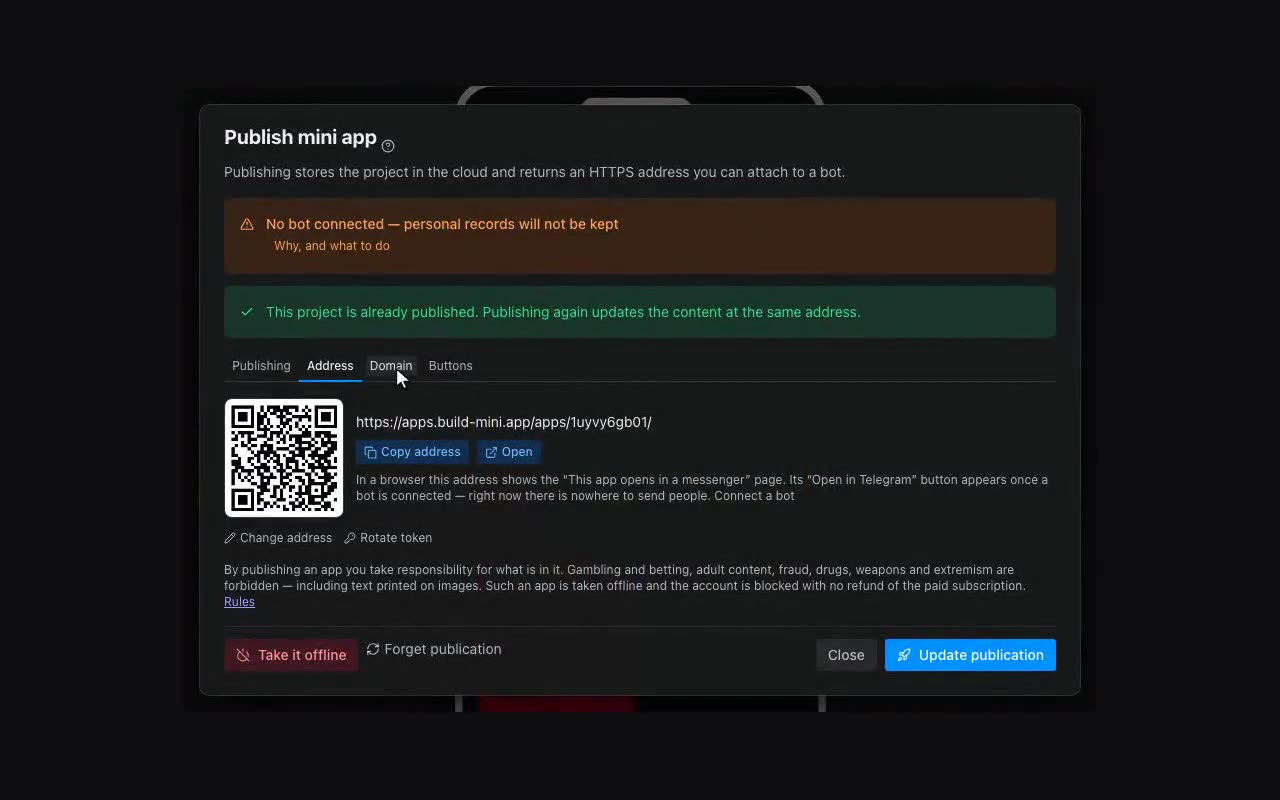
Available on the Pro and Studio plans. Publish dialog → Address tab → Custom domain. Two options:
- A subdomain —
app.test.ru, whentest.rualready hosts a site. The site stays put; DNS needs one CNAME record. - The bare domain —
test.ru, if it is free. Two records are needed, A and TXT. If a site lives there it will stop opening — take a subdomain instead.
The editor shows the records right after you press Connect, each with a copy button. Add them in the panel where you bought the domain: the “DNS records” or “Zone management” section. Delete nothing else, and leave TTL and priority alone.
The rest happens without you: records propagate in 15–30 minutes as a rule (a few hours at some registrars), the certificate is issued and renewed automatically, and the bot’s menu button moves to the new address. You can close the page — the bot messages you when the domain is live.
Opening your own app as its owner. A sign-in on your domain is separate from your sign-in to the editor: browsers do not carry one across different addresses. So the app opened at your domain through an ordinary link shows you as a visitor — with no “Edit row” or “Remove row” buttons. The “Open on your domain” button next to a connected domain takes you there as yourself: it issues a one-shot link that lives two minutes and works once.
Short links to files. Files are served from your domain as well. Under “More” → “Visitor files” every file has a chain-link button: it copies a short address like app.test.ru/34fhgjcsdlfl — one you can read out over the phone or print in an ad. A file keeps that address forever: press again and you get the same one. Without a custom domain the short link still works, just on our address.
And to images in your sheets. The same button sits in every “Image” cell, next to the upload. It does not just copy the address — it replaces it in the cell: instead of thirty-two characters of apps.build-mini.app/media/… the cell holds app.test.ru/34fhgjcsdlfl, and the app pulls the picture from your domain. This works for images uploaded to us; an address on somebody else’s site has nothing to shorten, so it has no button. You do not have to go row by row: the “Image” or “File” column header has a chain-link menu — “Shorten all links” does the whole column at once, and “Shorten on upload” does it for every new file by itself. A short address lives in the domain: after changing the domain, press “Shorten all links” again and the existing short links move to the new one.