Publishing and the address
Publishing puts the project in the cloud and issues an HTTPS address to attach to your bot.
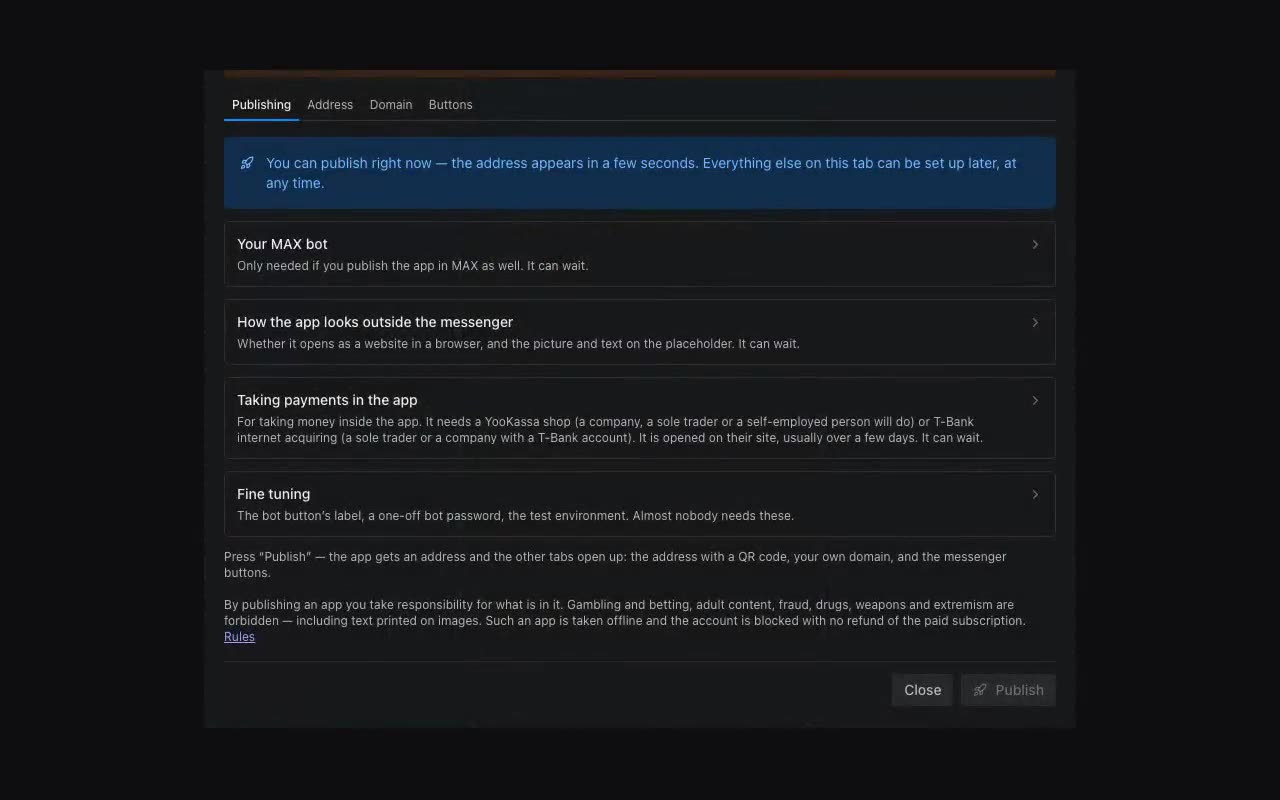
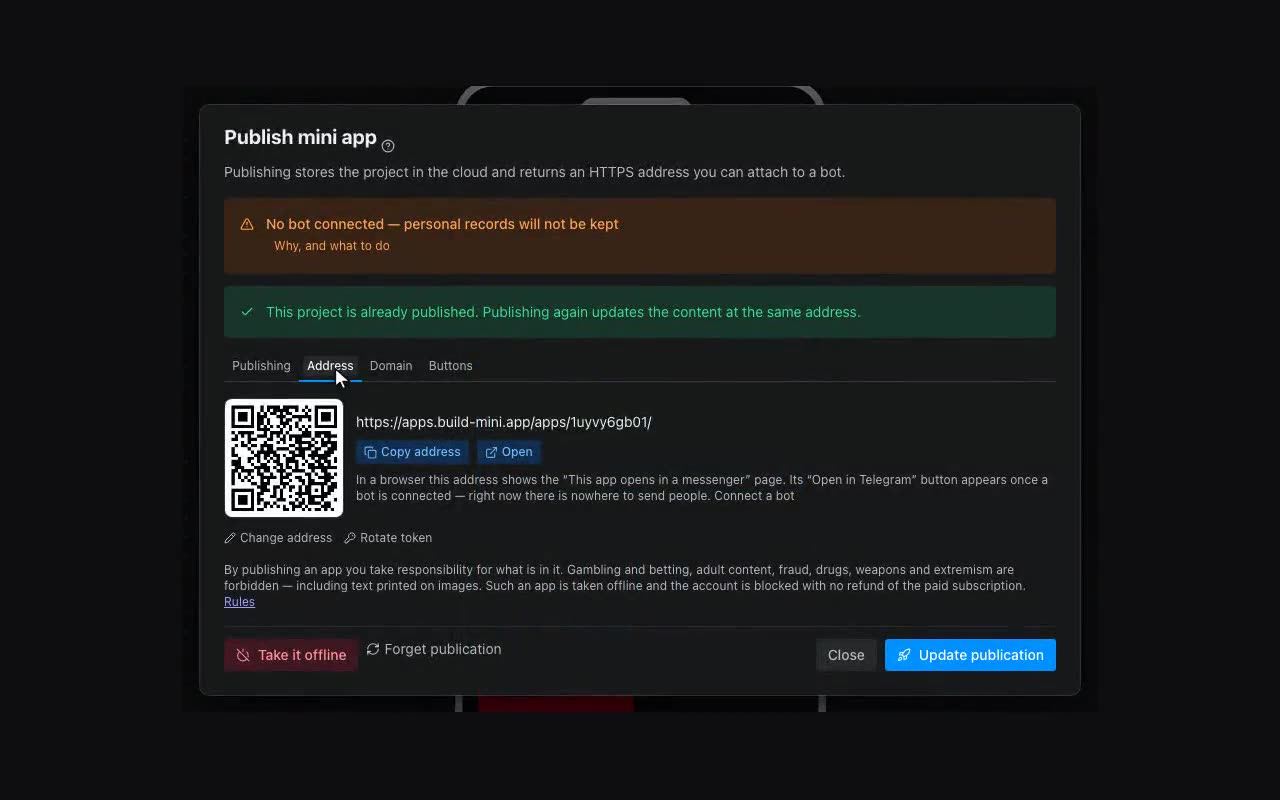
The Publish button at the top. The app gets a permanent address, and the menu button inside the chat with your bot is attached to it automatically — if the bot is connected.
Once published, the dialog reveals its other tabs: Address (the address itself, a QR code, a custom domain) and Buttons (how to place the app in Telegram and in MAX).
The address can be changed under “Change address”. It takes 6 to 32 characters — Latin letters, digits and hyphens; spaces and capitals are fixed as you type.
Edits made after publishing reach people only via Update publication — the editor reminds you once the project runs ahead of what is live. For an app that is already published the button at the top is split in two: the rocket icon updates the app at its current address right away, with no window, while the word Publish opens the settings window as before. If the server refuses — the trial has ended, say — the window opens by itself and says why.
Taking an app off the internet — the crossed-out cloud icon on the project row under Projects. The address stops opening immediately, the bot menu button pointing at it goes dead, and submissions and statistics go with the app. The project itself stays: you can edit it and publish again, and the slot in your plan is freed. An app whose project is already deleted is taken down where you can still see it: account menu → My apps.
On a computer the app opens at the same address — in Telegram Desktop and in MAX for desktop. The window there is as wide as the screen, so the app stands in it as a phone-width column in the middle with the background around it: the screens were built for a phone, and a button stretched across 1400 pixels would look like a table. Switch it under More → App settings → On a computer — “a column in the middle” or “full window width”.