A live table as a source
Google, Yandex Disk or your own address: the table stays yours, the app refreshes itself.
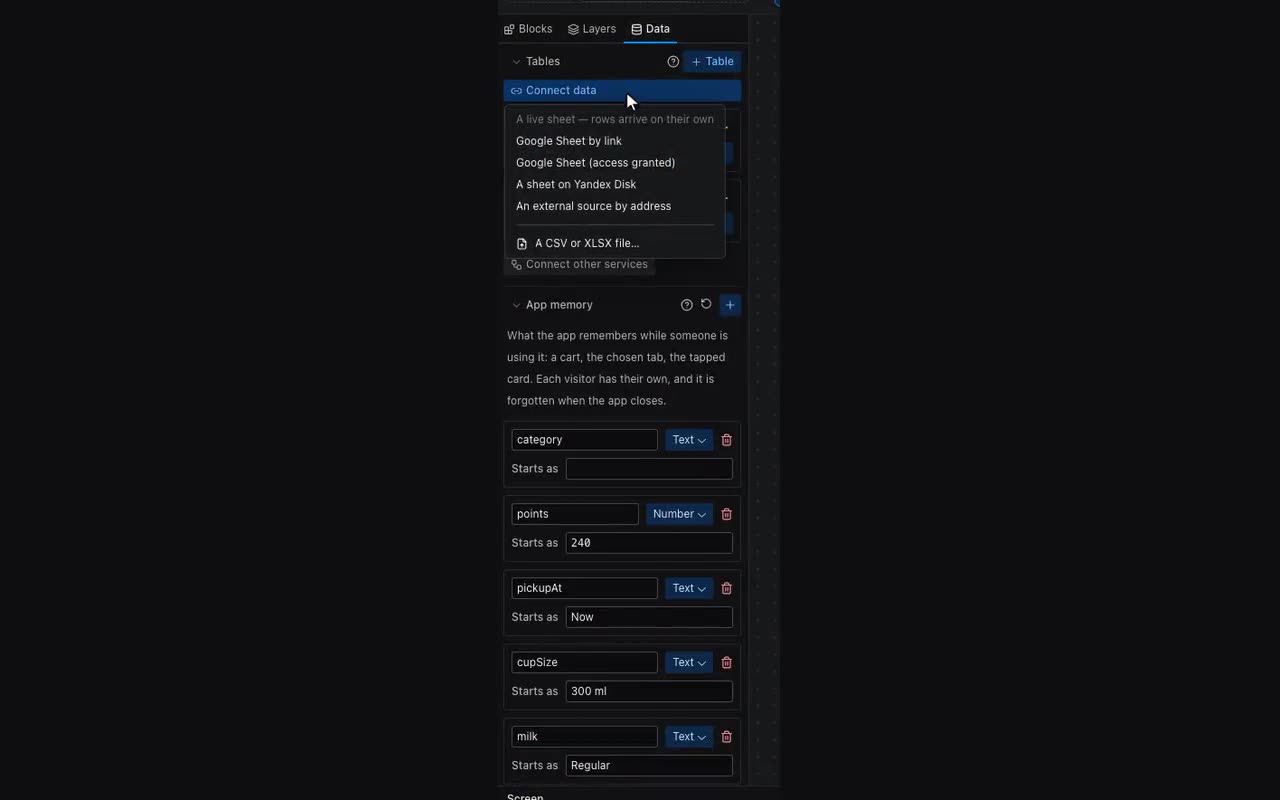
Where: The Data panel → the Connect data button: Google Sheets, Yandex.Disk and your own address are named in the menu. For a table you already have, the same entry is the “Connect an external sheet” link under its name.
It differs from a file import in one thing that matters: rows are not copied once, they keep arriving. Change a price in the sheet and visitors see it within the hour — no publishing, nothing to do.
- In Google Sheets: File → Share → General access, and pick “Anyone with the link”.
- Copy the address from the browser bar and paste it in. Any link to that sheet will do.
- Press “Check” — the columns and first rows appear. Map the columns just as you would for a file.
- Press “Connect the sheet”. The rows arrive at once.
A Google Sheet by link is the simplest path, not the only one. There are four kinds of source, chosen in the same window:
- A Google Sheet by link — nothing to set up, but the sheet must be open to “anyone with the link”.
- A private Google Sheet — stays private: you share it with the service address the editor shows you in that window, and with nobody else. This is the only kind that can also write back: rows added inside the app land in your sheet.
- A workbook on Yandex.Disk — a public link to an
.xlsxfile. No writing there: Yandex Sheets has no cell API, and a sheet there is a file on the Disk. - Your own JSON address — anything answering over HTTP: NocoDB, Teable, Baserow, Airtable and your own API. You give the address, a header with a key if needed, and the path to the array of records; paging is handled for you.
A private sheet can be connected without opening it to the whole internet: pick “Google Sheet (access granted)”, copy the address shown, press Share in your sheet and add it as a reader. The sheet stays private; only we can read it.
How often to fetch fresh data is chosen right in the source bar, next to Refresh: from 15 minutes to a day. You rarely have to wait for it: publishing refreshes the data at once — exactly the moment when you edit the sheet and go look at the result.
Dates and prices arrive as values, not as they look: a US-formatted sheet showing “8/16/2026” becomes a proper date, and “1,290.00 ₽” becomes the number 1290. Sorting and filters work afterwards.
Our server fetches the sheet, not the app page. That is deliberate: a published app never talks to foreign addresses (that is what protects it), and a visitor has no business seeing your access to the sheet. A copy of the rows lives with us, so the app opens even when Google is unreachable.
If link access is revoked or the sheet is deleted, the app keeps showing whatever arrived last time — it does not go empty.
| From where | What it needs |
|---|---|
| Google by link | Nothing. Share by link and paste the address. The catch: anyone with the link can open the sheet. |
| Google with granted access | Share the sheet with our service address, shown in the window. The sheet stays private. |
| Yandex Disk | A public link to an .xlsx file, or a Yandex ID OAuth token. A file specifically: Yandex Sheets offers no way to read cells. |
| Your own address (REST) | NocoDB, Teable, Baserow, Airtable, your own export. An address, a key, and — if we cannot guess it — the path to the list of records. |
If the source stops answering, a message arrives in the bot and the reason appears in the data panel. The app keeps showing the rows that arrived last time.
A form submission goes straight into your sheet. Turn on the “write back” switch in the source bar: a submitted form appends a row to the sheet. This works only for a Google Sheet shared with the service account, and only if it is shared as an editor, not a viewer. A public link and Yandex Disk cannot do it: for the first we hold no key, for the second there is no way to write a cell.
Next to it is the key — the column a row is recognised by. Pick one and a form sending the same value (an order number, an SKU, a phone) corrects that row instead of adding a second. Only the cells the form sent are written: your note in the next column stays. Without a key every submission is a new row.