Messenger theme and dark mode
Unset colours come from the client’s theme. The ones you set stay yours.
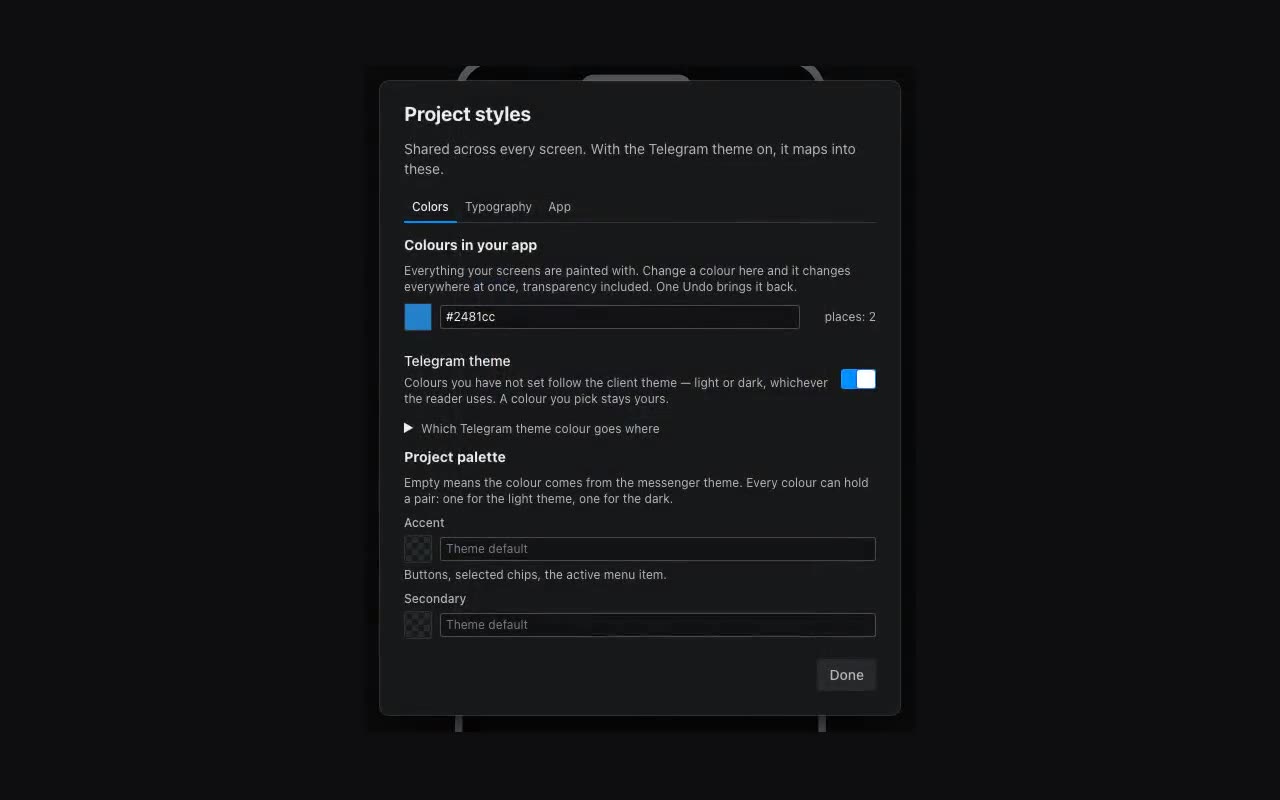
Project styles has a Telegram theme switch on its Colors tab. While it is on, anything you did not colour is taken from the messenger’s theme — light or dark, whichever the person uses. The app looks like part of Telegram rather than a guest in it.
Each colour can carry a pair: one value for light, another for dark. Your brand colour stays yours without blinding anyone on a dark background. Every colour field holds a pair — in Project styles, in the Style tab and in a block’s own properties: the chip colours of a filter strip, an icon’s colour, a player’s accent, the Telegram main button. The Light and Dark tabs sit at the top of the picker; a colour given as a single value stays the same in both themes.
The visitor can switch the theme too. There is a Theme switch block — an icon button (sun or moon, showing the theme that is on) or a sun/moon toggle — and a Switch the app theme action you can attach to any button, header icon or menu item. The action has four modes: toggle, force light, force dark, and “follow the messenger again”.
It outranks it in the colours too. While the visitor has picked no theme, unset colours come from the client, exactly as promised above. The moment they tap the sun in a dark client, the client’s colours are dropped: they are dark, and light was what was asked for. The app’s own palette steps in — so the switch changes how things look, not merely the icon on the button.
Whether that choice is remembered is up to you. The Theme switch block has a Theme on open property: “What the visitor picked” is the long-standing behaviour, surviving reloads; “Same as the messenger” starts every open from the client’s or the phone’s theme, and a tap on the switch lasts until the app is closed. The latter suits a listing app opened from a bot menu ten times a day: someone turned night mode on for the whole phone, and the app does not argue with a tap from last week.
The same tab decides who draws the Back button. “The messenger draws it” (the default) — Telegram and MAX show it in their own top bar; in a browser there is nobody to hand it to, so the app draws its own. “The app draws it over the screen” — always the app’s own button in the top left corner, inside the messenger as well. “Hide it” — neither one: pick this when your header already goes back, through the Header’s arrow or your own button shown when “Can go back” is set.
The same place holds “Confirm on close” (Telegram asks before the app is swiped away), “Rotate with the phone” (off by default: the screen is built upright, and a turned phone would show the same layout in the wrong height; turn it on for a video or a wide table), the Settings item in the app’s Telegram menu, which opens a screen of your choosing, and the app picture — what somebody sees when they open the link in a plain browser, instead of an empty circle on the “works in a messenger” page.