Templates: apps and screens
An app template replaces the whole project; a screen template adds one screen to what you already have.
More → Templates. Two tabs, and the difference matters.
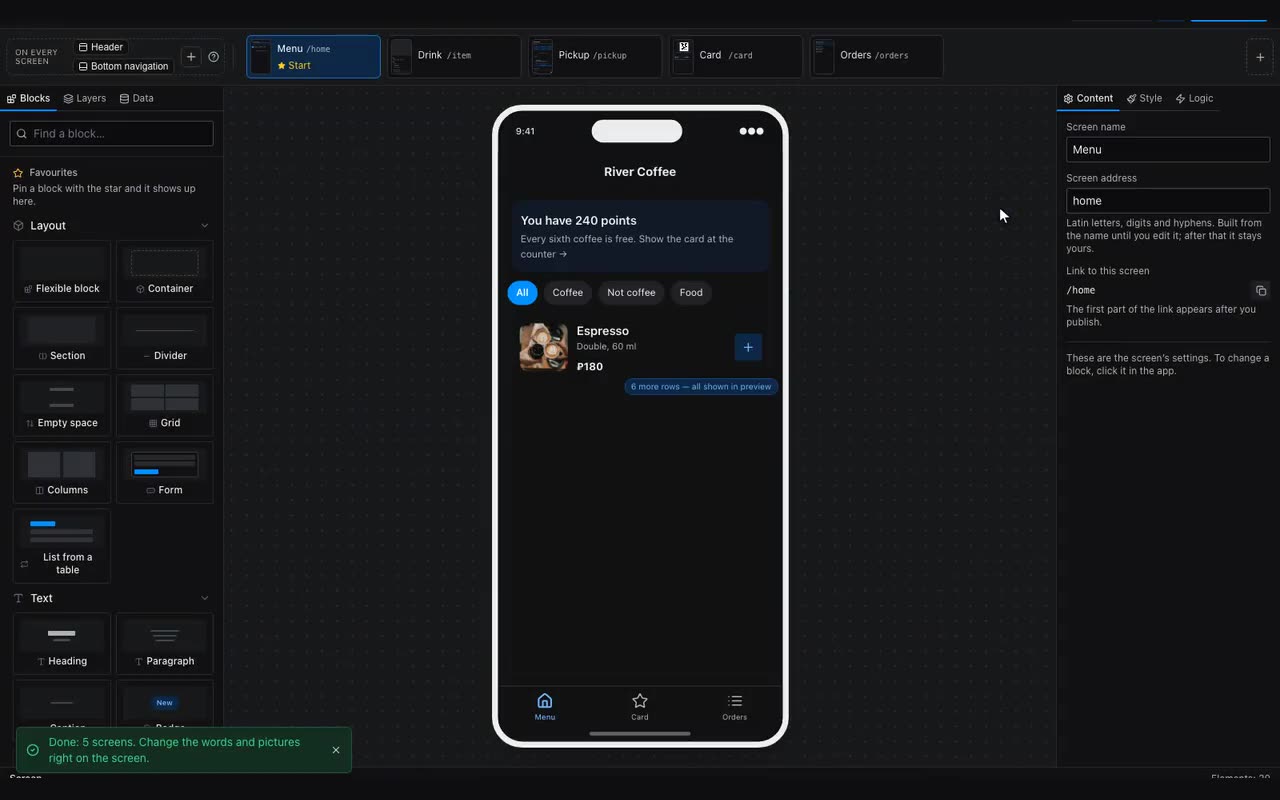
- Apps — complete projects: shop, food delivery, appointments, coffee house, clinic, car service, events, fitness, courses, real estate, travel, jobs, music, fundraising, loyalty, portfolio. Choosing one replaces the current project entirely — the editor asks first.
- Screens — individual screens: catalog, product page, cart, checkout, profile, settings, contact form, feed, booking, schedule, services and prices, team, reviews, pricing, article, gallery, FAQ, about, directions, my orders, order status, notifications, favorites, loyalty card, dashboard. A screen is added to your project without erasing anything.
In a template everything that looks tappable works, and the choices are real: the master, date and time in Booking travel with the request, and the seat category in Events changes the amount charged. A build-time test keeps it that way — though the services, prices and address are still examples for you to replace.