Build an app from a description
Describe what you need in words — the screens, tables and links are built for you. After that it edits like any project.
Where: The ✨ button in the editor’s top bar, next to preview. The same thing is the first row in More → Templates.
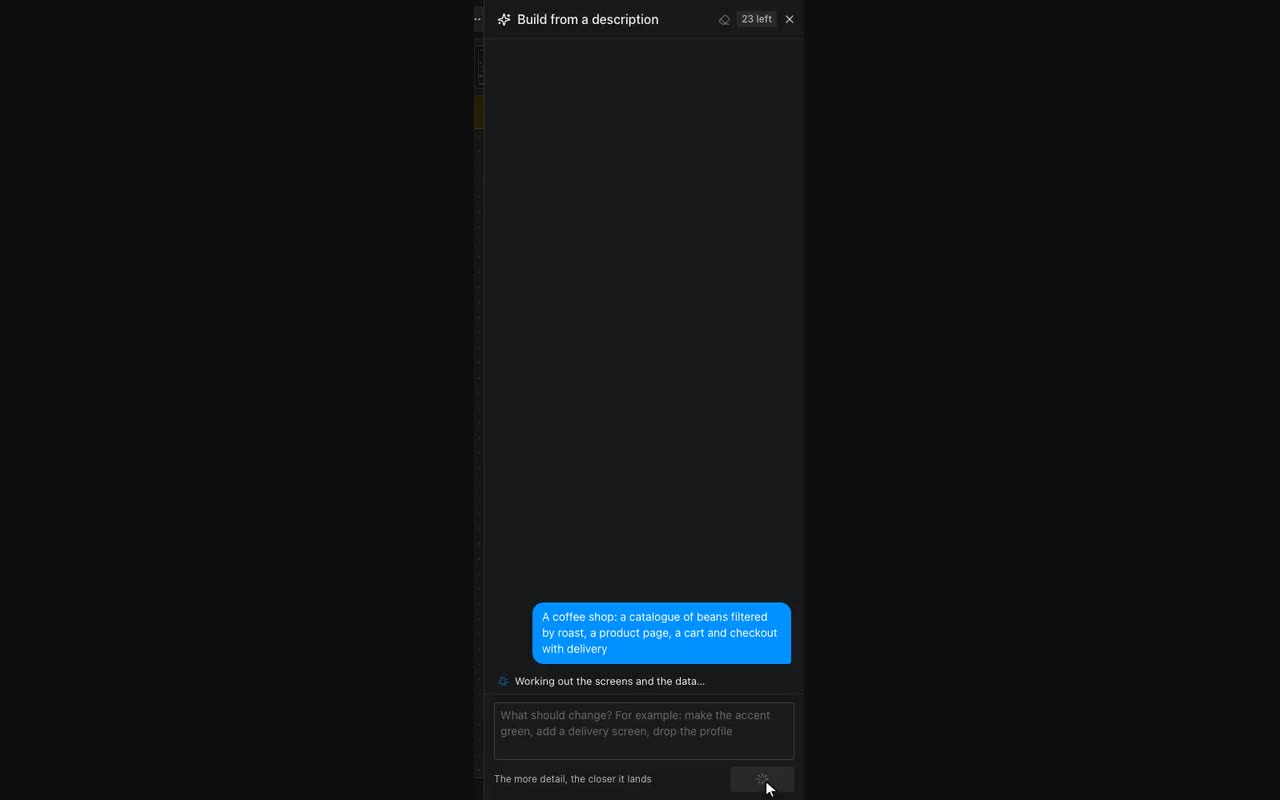
A conversation opens on the right: you say what you need and watch it being built. The canvas stays visible — the build is about it, after all.
Whether it is an app or a single screen is decided by the request itself. “I want a coffee shop” builds a whole app — screens and the links between them — and replaces the current project (the editor asks first). “Add a reviews screen” adds one screen to the open project, one that knows its tables and can link to them. Nothing is erased.
- Describe the app the way you would to a person: what you sell, which screens you need, what a visitor should do on them.
- Press Build (or Enter). The plan arrives first — how many screens and which tables — and then the screens themselves. The whole thing takes about twenty seconds.
- Look at the preview: the built screens are shown as phones you can swipe through. Not right — say what to change in the next line and build again.
- Press “Open in the editor”. From there it is an ordinary project: change the texts, prices and colours with the mouse like anywhere else.
Tables arrive filled in: Products will hold real names and prices from your trade rather than “Item 1”. They are samples — replace them with yours in the data panel. Tables a visitor writes into (cart, requests, bookings) arrive empty: they are filled by them, not by you.
Editing what is already built by talking to it is not possible yet — “make the button blue” will not be understood. You can build again with a different description, or add another screen.