Seating chart
A seating chart the visitor taps to pick seats: cinema, theatre, venue.
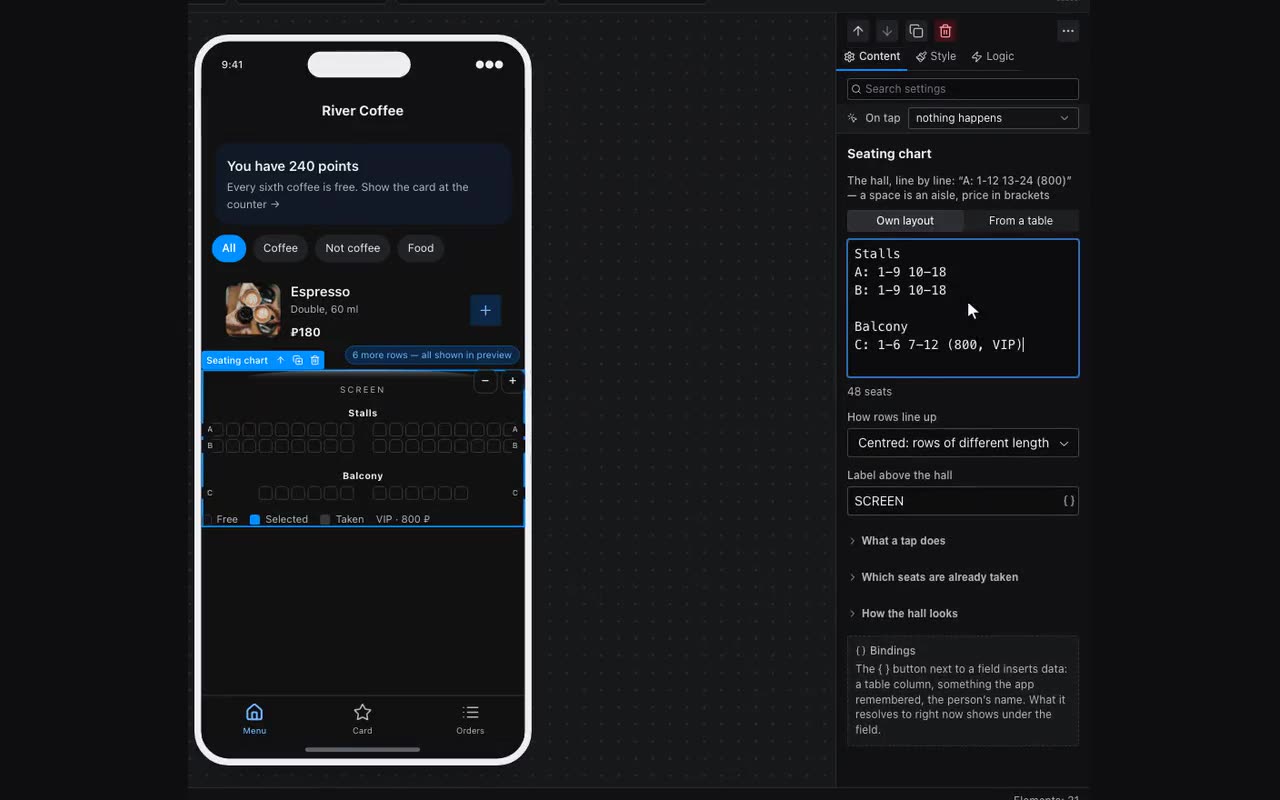
The Seating chart block draws the seats and lets the visitor pick them by tapping. There is no need to build it out of buttons: a row of fourteen seats means fourteen buttons with fourteen actions, and a hall of a hundred seats can no longer be edited at all.
The hall is written as text — one line per row. That is also how you draw the aisles and set the prices:
Партер
A: 1-12
B: 1-6, 8-14
C: 1-10 11-20 (800, VIP)- The row label comes before the colon. Anything goes:
A,1,Balcony. - A missing number is an aisle. In
B: 1-6, 8-14seat seven is a gap: the aisle is drawn by the numbering the hall already has. - A break without a comma is an aisle too.
C: 1-10 11-20puts an aisle in the middle even though the numbering runs on with no gap to take.1-10 | 11-20and[1-10][11-20]read the same, and a row may have as many aisles as you like. One thing to remember: a comma continues the row, anything else breaks it. - As many spaces, as many empty seats.
C: 1-10 11-20is an aisle three seats wide. That is how an aisle lines up with the one in the row above: a hall with a wide aisle down the middle is written with spaces, not by bending the numbering. With a sign (|,/,[]) the aisle stays one cell wide — spaces around a sign count as formatting. - An empty line is a cross-aisle between blocks of rows.
- A line with no colon is a section heading:
Stalls,Balcony,Circle. It sits across the hall above its own rows. - Brackets hold the price and the category:
(800),(800, VIP). The price belongs to the row, so “rows at different prices” are written right here:1: 1-20 (2000),2: 1-20 (1500). The price is what lets the chosen seats add up on their own.
A hall wider than the phone is dragged sideways with a finger, and it opens at its middle rather than at the left edge. When there are many seats they shrink and the numbers on them disappear — that is when “+” and “−” appear above the hall, and a two-finger pinch does the same: zoom in and the numbers are back. The row labels stay pinned to the edges of the screen instead of travelling with the hall, so you always know which row you are on. The buttons can be hidden: “Look” → “Zoom buttons”.
The chosen seats go into a list in the app memory — the same one the cart uses. Total, an order form and payment therefore read them with no setup at all: {{seats.count}} is how many, {{seats.sum.price}} is the amount, {{seats.join.code}} is the seats themselves in one line, “A-5, A-6”.
Taken seats come from a table: name it under “Which seats are already taken”, say which column holds the seat code and — if the table holds every show at once — add the filter by show. The filter works exactly as it does for a list. The column may hold several seats separated by commas: an order for three seats is one row.
Next to the filter sits “Never sell a seat twice”. Turn it on and one seat for one show goes to whoever tapped first: the server takes the seats together with the order and refuses the second person, naming the seats that have gone. They repaint as taken on the chart straight away and drop out of the selection on their own — Total recounts itself.
If the seat is paid for inside the app, set “Hold the seat for, min” next to it — 10–20 is usually enough. The booking then has a deadline: no payment and the seat goes back to the hall on its own, with no abandoned orders to sort out by hand. Payment removes the deadline for good: the order becomes a ticket and the seat is theirs. A cancelled payment returns the seat at once, without waiting for the deadline.
While a booking waits for payment its row carries {{item.__holdUntil}} — the moment the seat is held until. That makes an honest line on the payment screen: “Seats held until 7:45 pm”.
Several halls — one layout per hall. Above the hall text there is an Own layout / From a table switch. Create a Halls table with a Hall layout column, link shows to a hall, and keep the chosen show in a “row from table” variable. In From a table mode the panel offers the path to the layout itself — for example “session → Hall → Layout”, that is {{session.hall.layout}} — and shows how many seats the hall is drawn with. Filter taken seats by the same show: the Show column in tickets and the value {{session.id}}.
Where: Block palette → Commerce → Seating chart. A whole ready-made screen: Screens → Seat picker — its Halls, Shows and Tickets are already linked, and picking a show changes the hall.