Components: placing and selecting
Drag from the panel, nest, use layers, right-click for the rest.
The Components panel on the left is grouped by category: layout, text, media, inputs, buttons, data, navigation, feedback, Telegram, commerce. Drag what you need onto the canvas — or find it by search in the same panel, or through the command palette (⌘K).
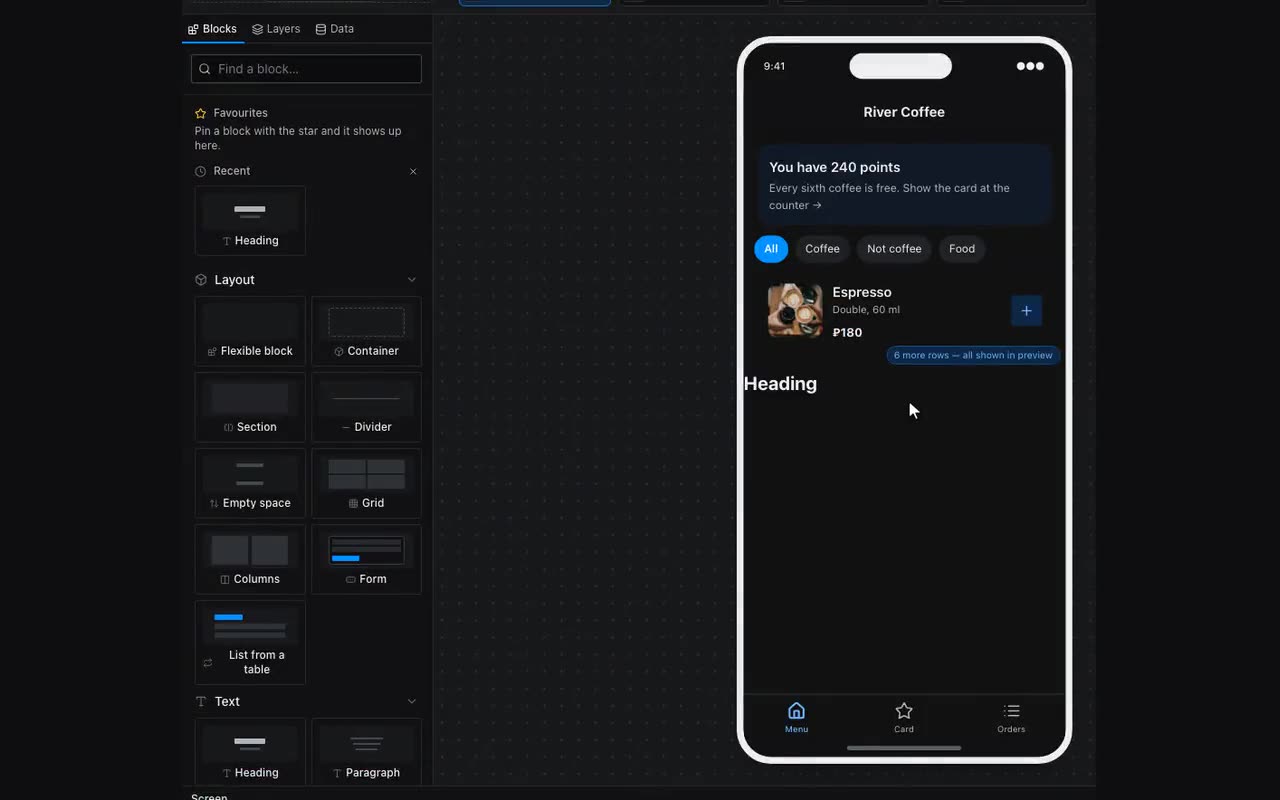
- Star a component you use often and it moves to Favorites at the top of the panel.
- Select the parent without aiming: ⌘⇧← ; step inside: ⌘⇧→ ; move between siblings: ⌘⇧↑ and ⌘⇧↓.
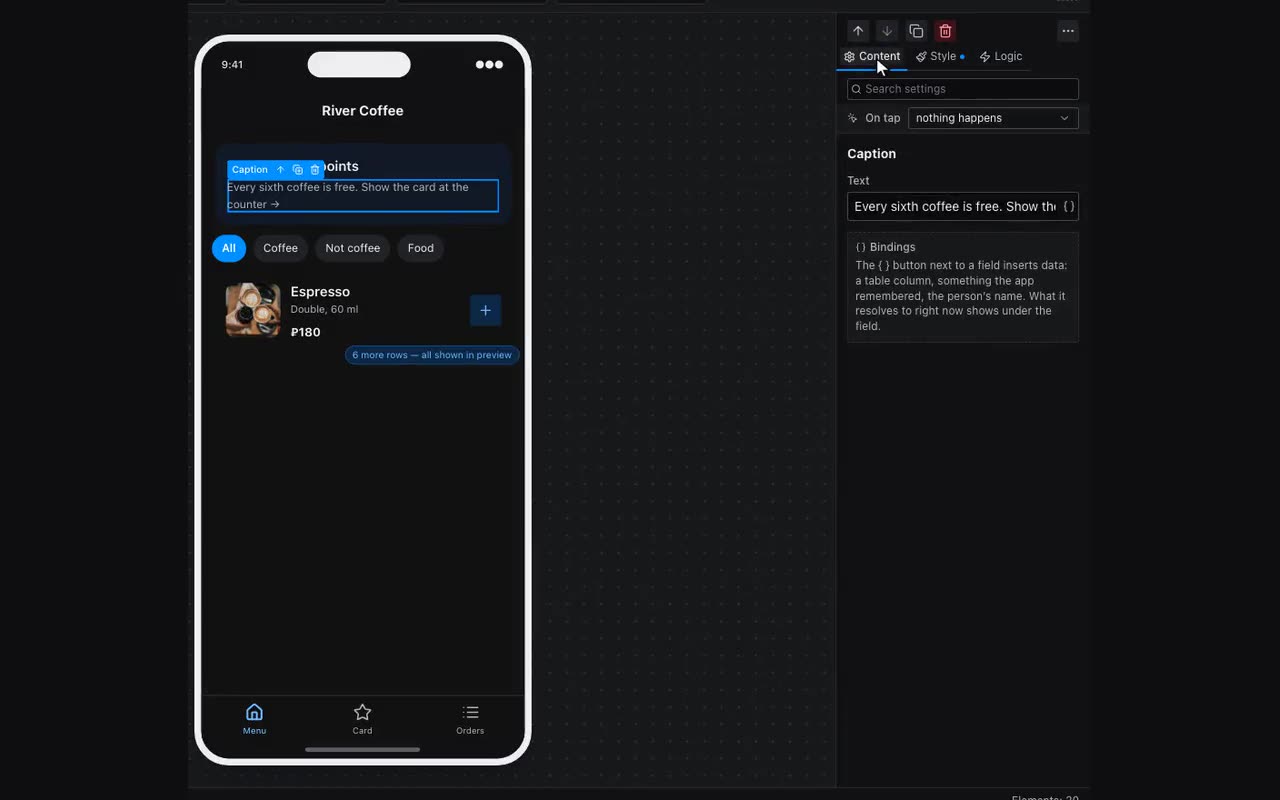
- The Layers tab shows the whole tree: hide, lock and drag components between containers there. On a desktop, clicking a block on the canvas opens the tab on that very layer — expanding the branches above it and scrolling the list to the row.
- The padlock locks the whole layer: a locked block and everything inside it cannot be selected on the canvas, dragged, deleted or edited in the properties panel — the panel still shows it but takes no input. A nested block shows a closed padlock that cannot be toggled: open it where it was set, or use the Unlock button in the panel itself.
- Right-click on the canvas: duplicate, copy style, copy logic, wrap in a container, unwrap, convert to another component, move out of the container, move to another screen. The same menu opens on right-click on a row in Layers — a surer way to hit a small block: on the canvas a button inside the header sits under its container, while the row in the tree is one named line.
- “Copy style” takes the whole look — fill, border, corners, spacing, layout — and “Paste style” makes the block match, rather than “match plus whatever was there”. If the source got its look from a named style (Project styles), the target is attached to that same style: change the style and both change.
- “Move to screen” carries the block with everything inside it and opens the screen it landed on — one step, undone whole with ⌘Z. No more copying and deleting the original by hand.
- The + button on a selected container (“Add inside”) opens a panel: at the top, what the screen already has — picking one moves it inside; below, what can be added as new.