Working from a phone
A phone is good for edits and publishing; building from scratch is better at a computer.
On a phone the app fills the screen at its real size, screens are a strip under the header, and at the bottom there are five buttons: Layers, Data, ⊕ to add a block, Properties and More. Tap a block and its properties slide up from the bottom. That is enough to fix text, swap an image, add a table row and update the publication.
A tap selects the deepest block under your finger — the label, not the card around it. To go up, use the path in the sheet’s header: tap “Card” or “Container”. Drag the sheet’s handle up to make it nearly full-screen and down to bring it back; while you type, it sits above the keyboard.
Text is edited right on the screen: the first tap selects the label, a second tap on it puts the caret at the end of the text. Tap elsewhere to finish. If the text contains a placeholder like {{points}}, the second tap puts the caret into the Text field in the sheet instead: the screen shows the substituted value, and typing over it would erase the placeholder.
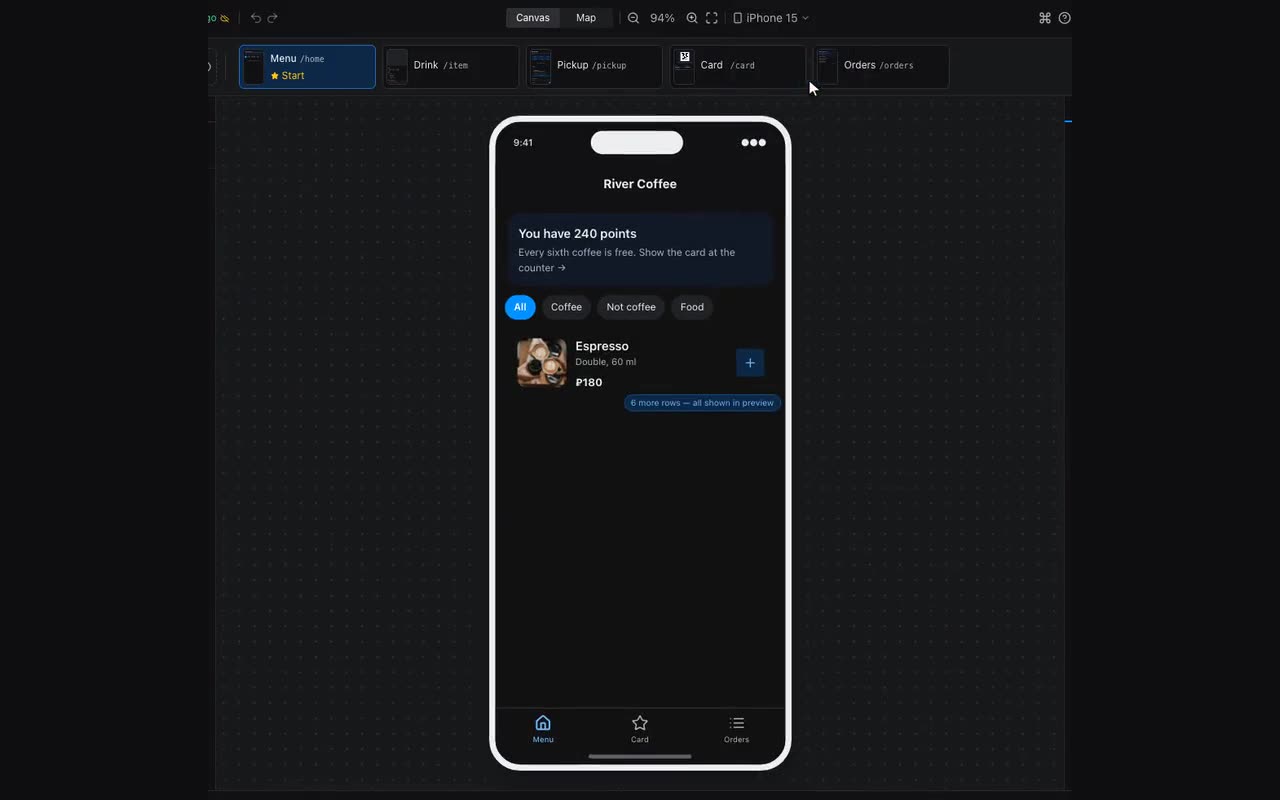
Building a whole app is easier at a computer: there is no dragging on a phone — blocks are added with ⊕ next to what is selected and moved with the ↑ and ↓ arrows in the top row of the properties sheet. Duplicate and delete are there too; moving out of a container, hiding, locking and pinning to every screen are in the “⋯” menu. A hidden, locked or pinned block shows its icon in that row: tap it to undo. Settings search is the magnifier next to the tabs, and “On tap” is the first row of the Content tab. Properties with nothing selected open the screen itself: its name, address and background; so does More → Screen name and address. More opens as a sheet with sections: the open screen (make it the start screen, duplicate, delete), the project, what people send you, help, and at the bottom the editor’s theme and language.
A tablet wider than 900 points — an iPad in landscape, say — gets the desktop editor with three panels. It works with a finger: a block from the palette, a screen in the strip and a row in the layers are dragged by press and hold — hold for a quarter of a second, and a short swipe stays a scroll. A screen’s or layer’s menu opens with a long press, the lock and eye in the layers show without hovering, and the buttons above the selected block are larger.