Photo overlays, background video, gradients and grain
Text over a photo that stays readable; video under a block; a gradient of several colours and a film texture.
Where: Image and video: the Content tab of a container, section or card. Overlay, brightness and grain: the Style tab → Background and texture. Gradient: Style → Colors.
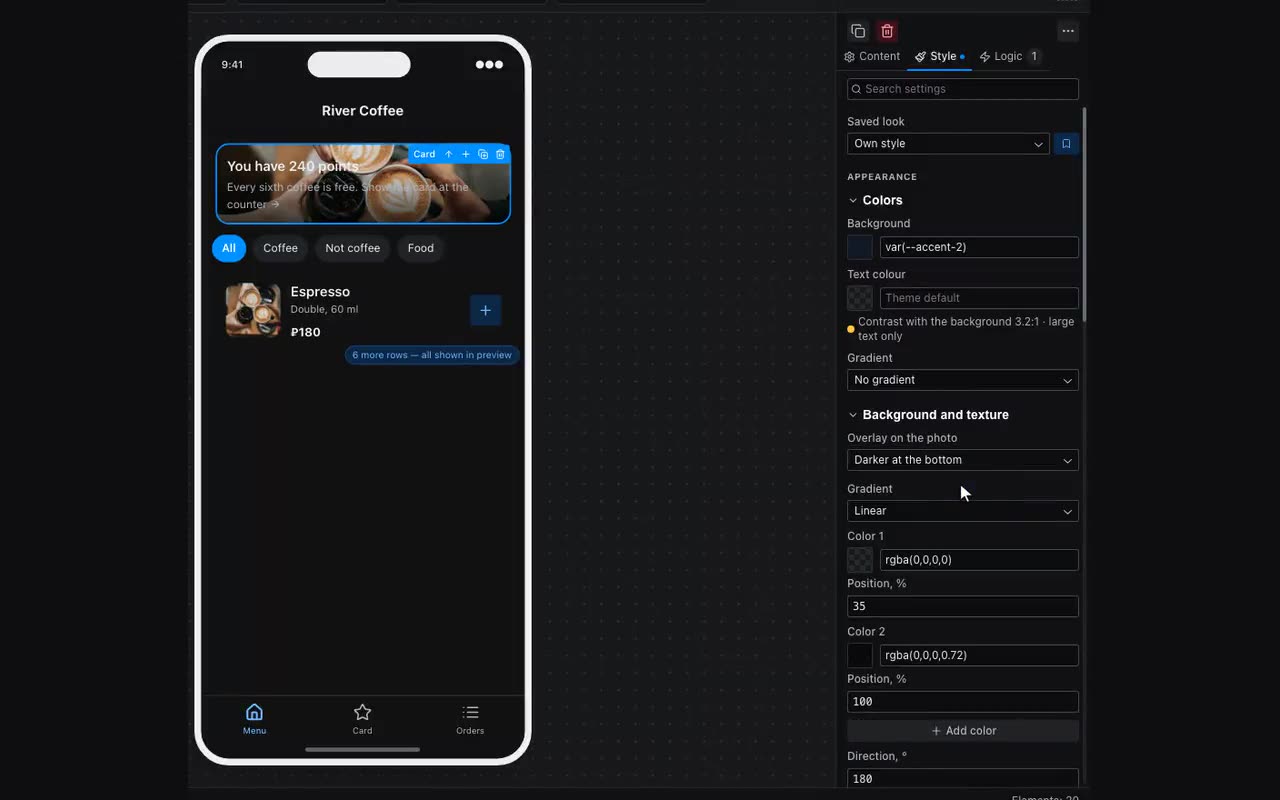
Overlay on the photo. White text on a light photo is unreadable, and the old cure was a gradient — which actually sat under the photo and darkened nothing. Background and texture now has a field of its own: “Darker at the bottom” (a caption at the bottom of a card), “Darker at the top” (a header over the picture), “Darker on the left” (text on the left of a wide cover) and “Even”. The chosen overlay opens into the ordinary gradient editor, where you can fine-tune the colours, where they sit and the direction.
Next to it is Photo brightness: lower it and the photo fades into the block’s fill colour while the text on top stays crisp. That turns a loud photo into a calm backdrop. Both fields need a background image or video; until there is one, the panel says so.
Background video works on a container, a section and a card, in the Content tab next to the background image: “Upload video” or “By link” to an mp4 file. It plays muted and looped under the block’s content, and the overlay and grain sit on top of it just as they do on a photo. The background image becomes the poster: it shows while the video loads, and instead of the video for people who turned on reduced motion or data saving on their phone. A link to a VK Video, Rutube or YouTube page does not work here: that is someone else’s player with its own buttons, and only the file itself can be a background.
Gradient (Style → Colors, under the text colour) can be linear, radial, conic or “Spots (mesh)”. It can have more than two colours — “Add color” — and each has its own “Position, %”: empty means auto, the colours spread evenly. Radial and conic gradients take a centre, spots take a size and position each. Spots fade into transparency, so the block’s fill shows between them: set that too.
Grain is a film texture over the background, in the same Background and texture group. 10–20 % is enough: on a flat fill or a gradient it takes away the plastic look. The field is on sections, containers and cards.
Two more fields for covers sit under Style → Layout → Size → More. Aspect ratio (4 / 5, 16 / 9) derives the height from the width: a photo block keeps its shape on any screen, and content that does not fit stretches the block rather than being cut off. Rotation, ° runs from −15 to 15, for a tilted sticker or card.