Visibility conditions
Show or hide a block depending on state: is it empty, equal, earlier.
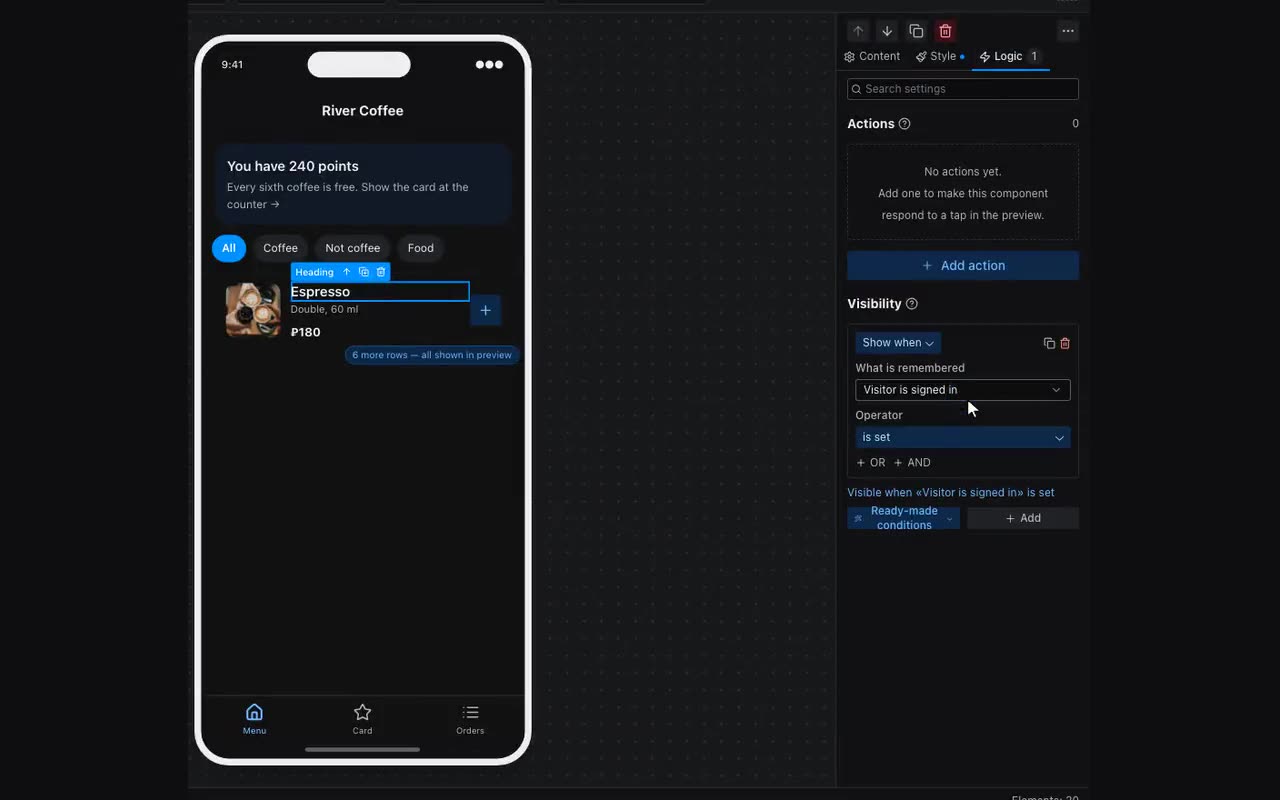
Where: Properties on the right → the Logic tab → Visibility conditions.
Start from a ready-made condition. While there are none, the section opens on a list: “only to people the app recognises”, “until the number is given”, “only on a phone”, “hide while scrolling down” and a few more. One click assembles the whole condition — what to check, operator and value — and it can be edited afterwards like any other. Below that, “Write my own” builds anything by hand, and the recipes stay on the “Ready-made conditions” button.
Under the conditions you have built there is a sentence — “Visible when …”, and “Hidden when …” if anything hides it. That is the answer to the question people actually have: there can be several conditions, and the rules differ — every “show” must match, while a single “hide” is enough. The sentence is built by the same rules the app itself uses.
A condition has four parts: show or hide, which field, how to compare, and against what. Operators: equals, not equals, contains, is set, is empty, greater than, less than, before, after. “Is set” and “is empty” take no value — they ask about the field itself. Greater/less and before/after compare the same way — numbers as numbers, dates as dates; the words differ because a price is asked about with “greater” and a start time with “after”.
- A “Share your number” button — show while
user.phoneis not filled; show everything else once it is. - A “Sold out” badge — show when
{{item.seats}}equals0. - A “Book” button — hide when
{{item.start}}is before{{now}}: the event is over. - An admin block — show when
{{user.id}}equals your own Telegram id. - A header that slides away as you scroll down — hide when “Scrolling down” is set. No opposite condition is needed: scroll back up and it returns, and at the very top of the screen it is always there.
- A “Back to top” button — show when “Scrolled, px” is greater than
400. - Your own back button in your own header — show when “There is a way back” is set: on the first screen it stays hidden, exactly like the built-in one. The field lives under Navigation.
- That same button is redundant in Telegram, which draws its own: add a second condition — hide when “Opened in Telegram” is set. The “Opened in Telegram” and “Opened in MAX” fields live under App.
The OR button at the bottom of a condition attaches a second one to it: if either matches, the pair matches. That is how “greater or equal” is written (“greater than 100” OR “equals 100”), and how a range is inverted — “hide when greater than 100 OR less than 10”. Without OR, every “show” condition must match.
Next to it sits the AND button: it attaches a condition that must match together with the previous one. That is how several things are checked at once — “role is admin AND screen is main AND a tab is remembered” — and how something otherwise unwriteable is written: two separate “hide” conditions hide the block if either matches, while an AND pair hides it only when both are true. AND binds tighter than OR: “A OR B AND C” reads as “A, or else B together with C”.
The copy icon on a condition remembers the whole of it — what to check, operator and value — and the Paste condition button at the bottom puts the same one on any other block, on another screen too. It only appears once something has been copied. To copy a block’s entire logic — actions and conditions together — right-click the block and choose “Copy logic”.