Rows into a Google Sheet
Every new row of a table is appended to your Google Sheet. Works with private tables too.
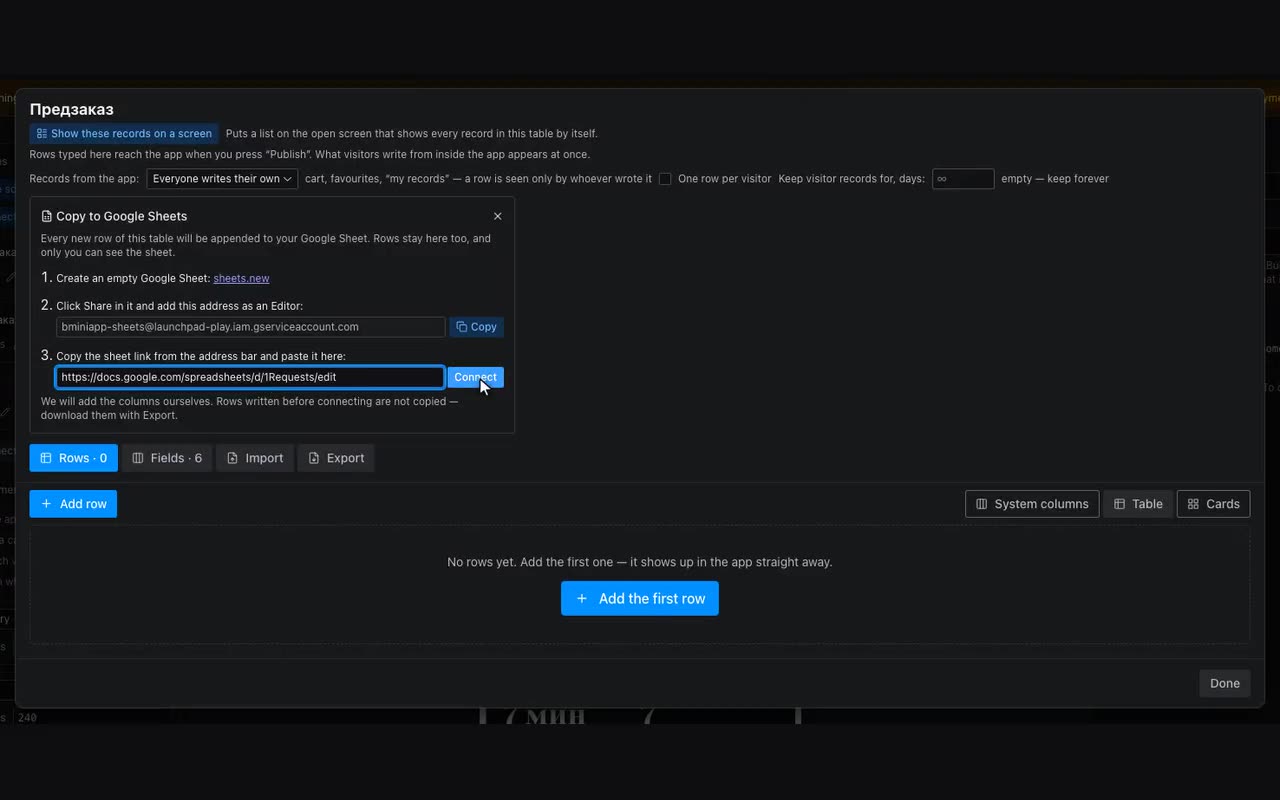
Where: The Data panel → open the table (say, “Requests”) → under its name, Copy new rows to a Google Sheet. The app must be published.
Requests, orders and bookings that visitors leave in the app are stored with us, in the app’s table. If it is easier to work with them in a Google Sheet — share with a manager, add notes, build pivots — turn on the copy: every new row will be appended there within a minute.
- Create an empty Google Sheet — the quickest way is
sheets.new. - In the sheet click Share and add the address shown in the window as an Editor. It is our service account: it only appends rows. The sheet stays closed to everyone else.
- Copy the sheet link from the browser’s address bar, paste it into the field and click Connect. Column names appear in the first row of the sheet right away — that means it works.
Columns are named as in the app’s table, and the last one is Added, the time of the row in Moscow time. Relations arrive as a name (“Swimming”), not as an internal row id. You can add your own columns — “Called back”, “Comment” — on the right and rearrange ours: we find a column by its name and never erase anything. A column added to the app later is appended at the end.
If Google refuses a row — say, the sheet was deleted or access was changed to Viewer — we keep retrying for about an hour. If that fails, the bar in the table window turns red and you get a message in the bot. The row itself is safe in the app: fix the access and click Retry — the rows that did not arrive are sent again.